Users
This page provides tools to search, display and manage users.
Data table
Users are displayed in a data table:
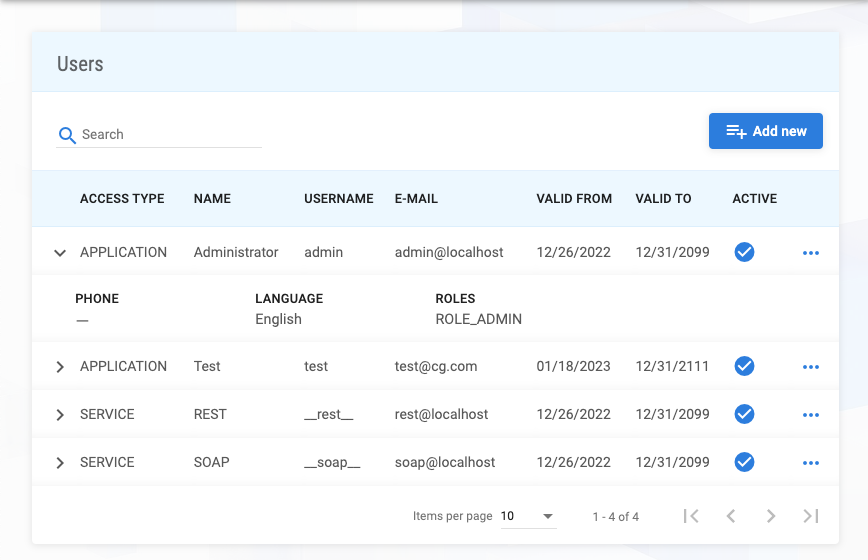
The following data table columns are available:
| Column | Description |
|---|---|
access type | Access type (APPLICATION | SERVICE) |
name | Name |
username | Username |
e-mail | |
valid from | Valid from date |
valid to | Valid to date |
active | Active flag |
phone | Phone number |
language | Language (default en) |
roles | Roles |
Users can be searched by username LIKE, using search input field.
To manage a record, clicking on three dots at the end of a table row, shows a dropdown:

Form
Add new
A user can be created using Add new button.

The following form fields are available:
| Column | Description | Required |
|---|---|---|
type | Access type (APPLICATION | SERVICE) | ✓ |
name | Name | ✓ |
username | Username | ✓ |
password | Password (APPLICATION type) | ✓ (APPLICATION type) |
password confirmation | Password confirmation (APPLICATION type) | ✓ (APPLICATION type) |
secret | Secret (SERVICE type) | ✓ (SERVICE type) |
secret confirmation | Secret confirmation (SERVICE type) | ✓ (SERVICE type) |
e-mail | ✓ | |
phone | Phone number | |
valid from | Valid from date | ✓ |
valid to | Valid to date | ✓ |
active | Active flag | ✓ |
roles | Roles | ✓ |
Save button is enabled only if form data are valid.
Edit
To edit a record, clicking on Edit dropdown option shows the form to edit data.
Delete
To delete a record, clicking on Delete dropdown option shows the confirmation dialog to delete data.
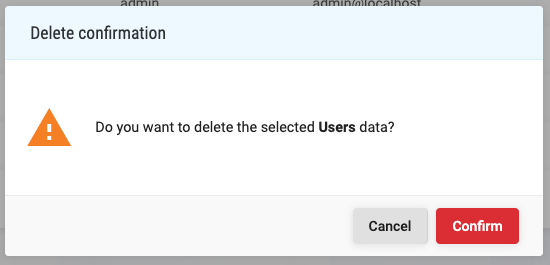
The data referenced by another entity cannot be deleted. Confirm button deletes the data.
Result
As a result of every successful action, the Information message box is presented, with adequate message.
On validation or constraints error, the Warning message box is presented, with adequate message.
On error, the Error message box is presented, with adequate message.